
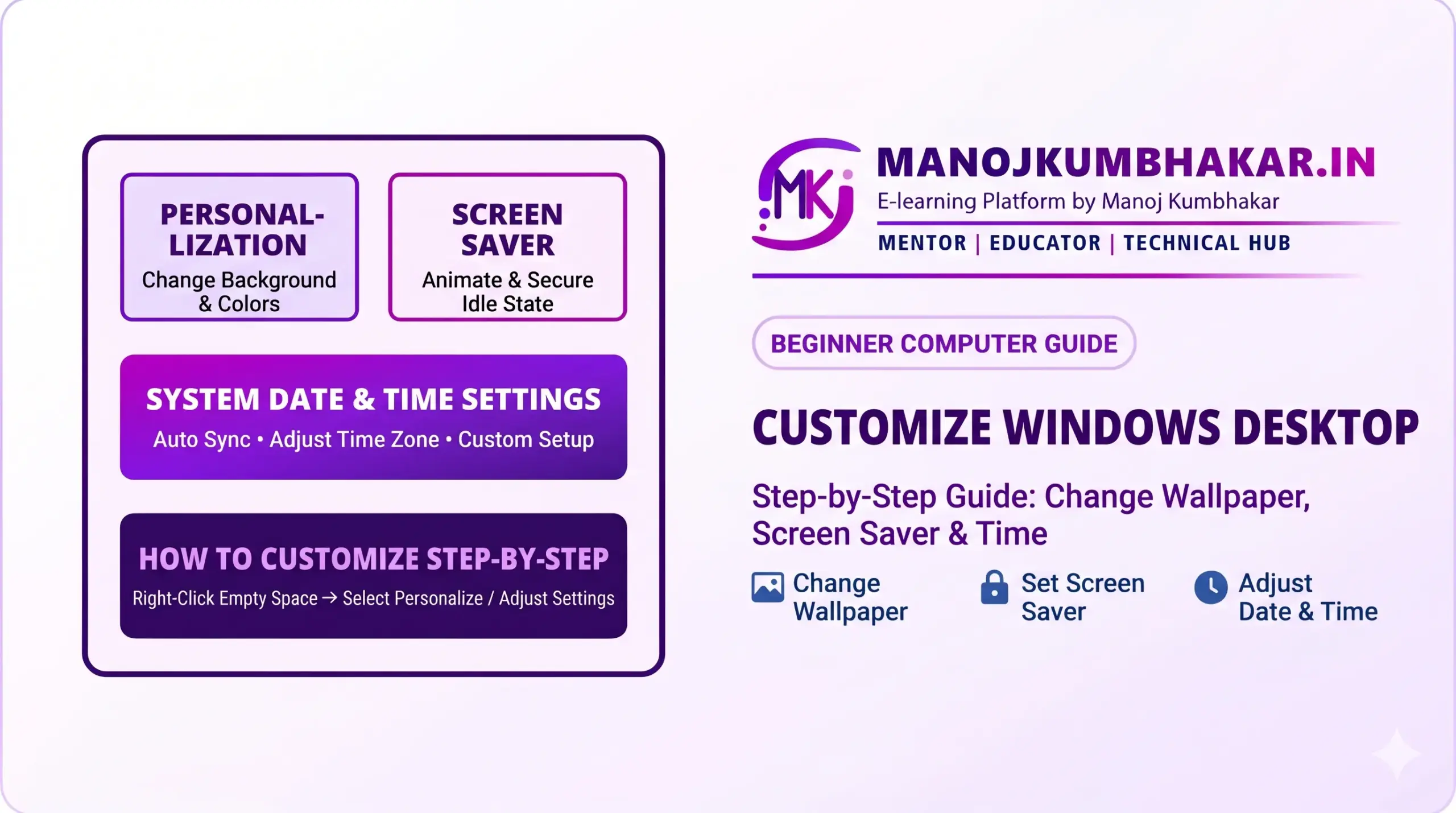
Staring at the exact same default blue computer screen every single day feels dull—and worse, when your taskbar clock shows the wrong time, websites refuse to load security certificates and scheduled reminders fire late. Knowing how to customize windows desktop settings transforms a plain factory PC into a clean, personal workspace that matches your style and keeps your daily schedule running right on time.
Whether you are practicing on a school lab computer or setting up a brand-new laptop at home, personalizing your screen takes less than two minutes once you know where to click. In this step-by-step beginner guide, you will learn how to change your desktop wallpaper, configure a protective screen saver, and adjust your Windows date and time settings effortlessly.
Table of Contents
- 1. Why Customize Windows Desktop Settings?
- 2. Quick Visual Map: Windows Personalization Flow
- 3. How to Change Desktop Wallpaper in Windows
- 4. How to Set Up a Screen Saver in Windows
- 5. How to Change Date and Time Settings
- 6. Quick Reference Table: Settings & Shortcuts
- 7. Frequently Asked Questions (FAQs)
- 8. Related Computer Basic Guides
1. Why Customize Windows Desktop Settings?
When you first learn to customize windows desktop settings, you are doing much more than just decorating your screen. Adjusting these built-in controls improves eye comfort, protects your monitor, and keeps internet browsers working properly.
- Better Visual Comfort: Choosing a calm wallpaper or dark background reduces eye strain during long study or office sessions.
- Screen Protection & Privacy: A timed screen saver prevents static images from burning into older monitors and can automatically lock your screen when you step away.
- Accurate System Clock: Modern websites use HTTPS encryption that relies on your PC having the exact right date and time zone.
If you are not yet familiar with where the Start Menu, Taskbar, and System Tray sit on your screen, read our visual walkthrough on the 7 Essential Parts of Computer Desktop first.
2. Quick Visual Map: Windows Personalization Flow
All three settings can be reached directly from your desktop screen without digging through complicated folders. Follow this visual roadmap:
3 Paths to Customize Windows Desktop Settings
Right-Click Desktop → Select Personalize → Click Background → Choose Picture, Solid Color, or Slideshow.
Personalize → Click Lock screen → Select Screen saver → Pick animation & wait time (e.g., 5 mins).
Right-Click Taskbar Clock → Select Adjust date and time → Toggle Auto Sync or click Change.
3. How to Change Desktop Wallpaper in Windows
Your desktop background (wallpaper) is the large image covering your main screen behind your icons. Follow these five simple steps to update it in Windows 10 or Windows 11:
- Right-Click on Empty Space: Move your mouse pointer to any blank area on your desktop (away from icons) and click the right mouse button.
- Select Personalize: Click Personalize at the very bottom of the pop-up menu to open the Settings window.
- Open Background Settings: Click on Background from the menu list.
- Choose Your Background Style: Use the Personalize your background dropdown to pick one of three options:
- Picture: Displays a single photo. Click Browse photos to select any image saved in your Pictures or Downloads folder.
- Solid color: Fills the screen with a clean, distraction-free color—great for fast performance on older PCs.
- Slideshow: Automatically rotates through a folder of your favorite photos every few minutes.
- Adjust Image Fit: Under Choose a fit for your desktop image, select Fill (recommended) so your photo covers the entire monitor cleanly without black bars.
4. How to Set Up a Screen Saver in Windows
A screen saver is an animated pattern or moving text that automatically appears on your monitor after your keyboard and mouse stay idle for a set number of minutes. Here is how to enable one:
- Open Lock Screen Settings: Right-click on the desktop, click Personalize, and choose Lock screen.
- Launch Screen Saver Settings: Scroll down to the bottom and click Screen saver (in Windows 10, this link appears under Related settings). A classic Screen Saver Settings dialog box will pop up.
- Select an Animation Style: Click the dropdown menu under Screen saver and choose an option such as 3D Text, Bubbles, Mystify, or Ribbons.
- Set the Wait Time: Set the Wait box to your preferred idle duration—for example, 5 minutes.
- Enable Security Lock (Optional): Check the box labeled On resume, display logon screen if you want Windows to ask for your password when someone moves the mouse.
- Preview and Apply: Click Preview to see how it looks full-screen, then click Apply and OK.
5. How to Change Date and Time Settings
If your computer displays the wrong hour, year, or time zone, fixing it takes just a few clicks from the bottom-right corner of your taskbar:
- Right-Click the Taskbar Clock: Move your cursor to the clock and date display at the extreme bottom-right corner of your screen and right-click it.
- Click Adjust Date and Time: Select Adjust date and time from the menu to open the Time & Language settings page.
- Check Your Time Zone First: Make sure the Time zone dropdown matches your actual region (for example,
(UTC+05:30) Chennai, Kolkata, Mumbai, New Delhifor India or(UTC-05:00) Eastern Time (US & Canada)for the US East Coast). - Use Automatic Internet Sync (Recommended): Turn Set time automatically to On and click Sync now. Windows will fetch the exact atomic clock time over the internet.
- Set Time Manually (When Offline): If your PC has no internet connection, turn Set time automatically to Off, click the Change button next to Set the date and time manually, enter the exact date and time, and click Change to save.
For additional official troubleshooting steps if your system clock keeps resetting, check the Microsoft Windows Time & Date Support Guide.
6. Quick Reference Table: Settings & Shortcuts
| Desktop Setting | Fastest Access Path | Recommended Beginner Option |
|---|---|---|
| Desktop Wallpaper | Right-click Desktop → Personalize → Background | Picture mode with “Fill” fit |
| Screen Saver | Personalize → Lock screen → Screen saver | 3D Text or Bubbles with 5-minute wait |
| Time Zone | Right-click Taskbar Clock → Adjust date and time | Select your local UTC region |
| System Clock Sync | Date & Time Settings → Sync now | Keep “Set time automatically” turned On |
7. Frequently Asked Questions (FAQs)
Why does my Windows computer time keep changing to the wrong time?
First, verify that your Time zone is set correctly in Date & Time settings. If your clock resets to an old year every time you unplug your desktop PC, the small coin-shaped CMOS battery on your motherboard may be weak and need replacement.
Do modern LED and laptop screens still need a screen saver?
Modern LCD and LED monitors rarely suffer from permanent image burn-in like older CRT tubes did. However, screen savers remain useful for adding a custom 3D message to your desk or automatically locking your computer after a few minutes of inactivity.
What is the fastest keyboard shortcut to open Windows Settings?
Press Windows Key + I on your keyboard at any time to open the main Windows Settings window immediately, where you can access both Personalization and Time & language.
8. Related Computer Basic Guides
Continue mastering Windows fundamentals with the previous lessons in our Beginner Computer Guide series: