
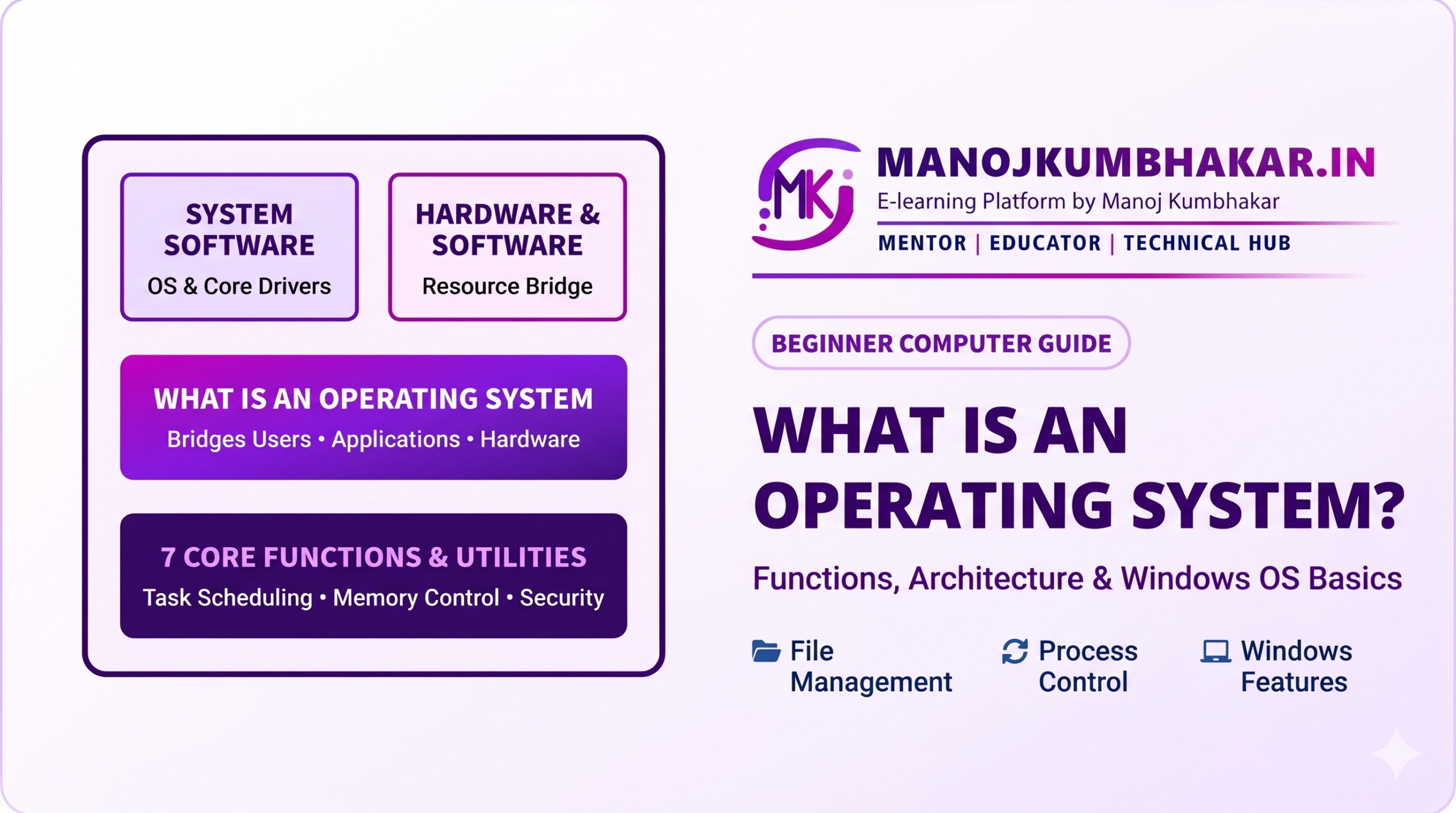
If you are starting your journey in computer education, understanding what is an operating system is the most important foundational step. Without this core system software, a computer is simply an unresponsive collection of plastic, silicon chips, and metal circuits.
Every time you press the power button on a laptop or desktop, specialized software wakes up the hardware, checks the memory, and displays a welcoming screen. In this beginner guide, we will explore how system software bridges the gap between human users and machine hardware, alongside practical Windows operating system knowledge every student needs.
Table of Contents
- 1. What is an Operating System? (Simple Definition)
- 2. How an Operating System Works
- 3. 7 Core Functions of an Operating System
- 4. Common Types of Operating Systems
- 5. Essential Windows Operating System Knowledge
- 6. Evolution of Microsoft Windows Versions
- 7. Windows vs. Other Operating Systems
- 8. Frequently Asked Questions (FAQs)
1. What is an Operating System? (Simple Definition)
To answer what is an operating system in simple terms: an Operating System (OS) is the primary system software that manages all computer hardware and software resources while providing common services for computer programs.
Think of the OS as the manager of a busy office. Just as an office manager assigns desks, distributes files, and coordinates staff schedules, the operating system controls the Central Processing Unit (CPU), allocates Random Access Memory (RAM), and coordinates input/output devices like your keyboard, mouse, and monitor.

2. How an Operating System Works
Computers understand only binary machine language (0s and 1s), whereas humans interact using visual icons, clicks, and typed text. The operating system acts as a translator between both worlds through four structured layers:
- User Layer: You, the student or professional, interacting via mouse clicks, touchscreens, or keyboard commands.
- Application Layer: Programs you open to perform specific tasks, such as MS Word, Google Chrome, or media players.
- Operating System Layer: The central software bridge (such as Microsoft Windows) that receives your instructions and translates them for the machine.
- Hardware Layer: Physical components including the processor, hard drive, RAM, printer, and display screen.
When you click “Print” inside a document editor, the application asks the OS to handle the job. The OS communicates with the printer driver, queues the pages in memory, and sends electrical signals to produce your paper copy.
3. 7 Core Functions of an Operating System
Modern operating systems perform dozens of background operations every millisecond. Here are the seven primary responsibilities that keep your computer running smoothly:
- Process Management: Decides which program gets access to the CPU, for how long, and in what order, enabling smooth multitasking across open windows.
- Memory Management: Allocates RAM space to active applications and reclaims that memory immediately once you close a program.
- File System Management: Organizes data into logical folders, directories, and drives (such as Local Disk C: and D:) so files can be saved, searched, and retrieved quickly.
- Device and Driver Management: Uses small translator programs called device drivers to communicate with USB drives, webcams, speakers, and scanners.
- Security and Access Control: Protects personal files through user accounts, login passwords, BitLocker encryption, and built-in firewall barriers.
- User Interface (UI) Provision: Provides an intuitive Graphical User Interface (GUI) with windows, icons, menus, and pointers instead of forcing users to memorize text commands.
- Error Detection and Recovery: Continuously monitors hardware health and alerts users when a storage drive fails, a battery runs low, or a program freezes.
4. Common Types of Operating Systems
Different computing environments require specialized system software. Understanding the major categories helps clarify how devices operate across industries:
- Single-User, Multitasking OS: Designed for one person using a personal desktop or laptop to run multiple programs simultaneously (e.g., Windows 11, macOS).
- Mobile Operating System: Touch-optimized software built specifically for smartphones and tablets (e.g., Google Android, Apple iOS).
- Multi-User / Network OS: Allows hundreds of connected computers to share files, printers, and databases over a central server (e.g., Windows Server, Ubuntu Linux).
- Real-Time Operating System (RTOS): Executes critical instructions with zero delay for medical life-support machines, aircraft navigation, and industrial robotics.
5. Essential Windows Operating System Knowledge
Developed by Microsoft, Windows is the world’s most widely used desktop operating system in schools, offices, and homes. Mastering basic Windows concepts is essential for every computer learner:
- Graphical User Interface (GUI): Windows replaced older black-and-white text screens with visual elements—desktop icons, resizable application windows, and a clickable Start Menu.
- Plug and Play (PnP): When you plug a new mouse, pen drive, or keyboard into a USB port, Windows automatically detects the hardware and configures it within seconds.
- File Explorer & Drive Letters: Windows organizes storage partitions using alphabetical letters. The primary system drive is always labeled
C:, while additional partitions or external drives appear asD:,E:, and so on. - Built-in Utility Tools: Windows includes essential accessories out of the box, including Notepad, Paint, Calculator, Snipping Tool, and Windows Security antivirus protection.
To see how these system capabilities power everyday professions, read our complete guide on the 10 Best Uses of Computer in Daily Life.

6. Evolution of Microsoft Windows Versions
Since its initial release in 1985, Microsoft Windows has evolved dramatically in speed, visual design, and security. For official technical documentation on modern builds, you can refer to the Microsoft Windows Documentation Portal.
- Windows 95 & Windows 98: Introduced the iconic Start Button, Taskbar, and widespread home internet support.
- Windows XP (2001): Famous for its stability, blue-and-green visual theme, and rapid adoption across schools and offices.
- Windows 7 (2009): Refined the Aero glass interface, improved system speed, and became one of the most popular desktop editions in history.
- Windows 10 (2015): Unified desktop and tablet experiences, introduced the Edge browser, and established continuous security updates.
- Windows 11 (2021–Present): Features a centered Start Menu, rounded window corners, Snap Layouts for multitasking, and hardware-level TPM 2.0 security.
7. Windows vs. Other Operating Systems
Comparing Windows with macOS and Linux helps beginners understand why organizations choose specific platforms:
| Feature | Microsoft Windows | Apple macOS | Linux (Ubuntu/Fedora) |
|---|---|---|---|
| Developer | Microsoft Corporation | Apple Inc. | Open-Source Community |
| Licensing Cost | Paid License (Proprietary) | Included with Mac Hardware | 100% Free & Open Source |
| Hardware Compatibility | Works on almost any PC brand | Exclusive to Apple Mac devices | Runs on PCs, servers, and old hardware |
| Best For | Offices, schools, gaming, general users | Video editing, graphic design, developers | Programming, web servers, cybersecurity |
8. Frequently Asked Questions (FAQs)
Can a computer work without an operating system?
No. Without an operating system, a computer cannot load applications, manage memory, or recognize keyboard and mouse inputs. When turned on without an OS, the screen will simply display a BIOS/UEFI error message stating “No Bootable Device Found.”
Is Microsoft Office an operating system?
No. Microsoft Office (Word, Excel, PowerPoint) is application software designed to perform specific user tasks. It requires an operating system like Windows or macOS to run.
Which Windows version is best for beginners to learn?
Windows 10 and Windows 11 are ideal for beginners. Both share nearly identical file management structures, keyboard shortcuts, and Control Panel/Settings layouts.