
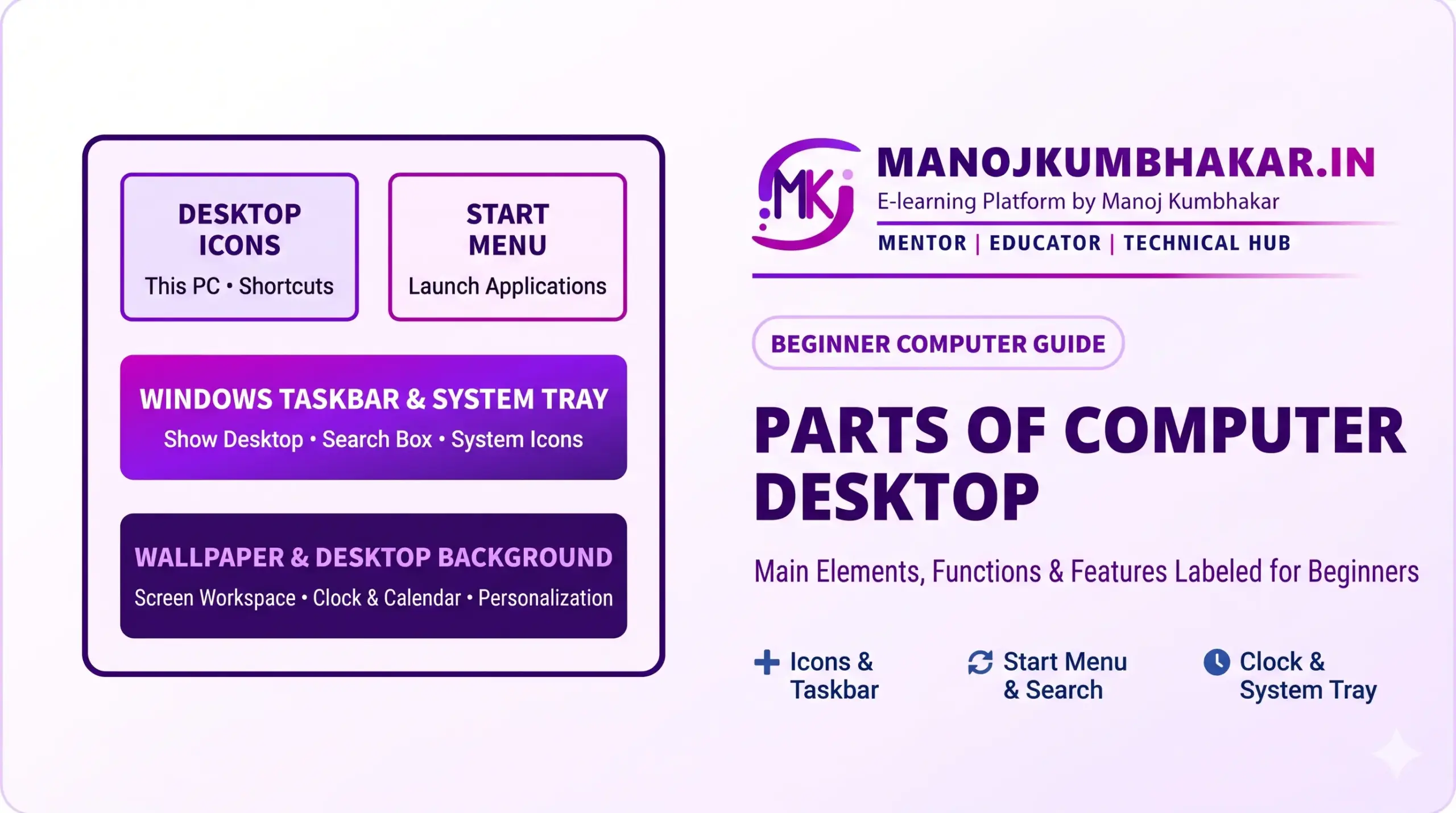
When you turn on your Windows PC and log in, the very first screen that welcomes you is the desktop. Understanding the parts of computer desktop interfaces is a foundational skill for every beginner learning how to navigate files, launch applications, and manage system tools efficiently.
Think of your digital screen just like a physical wooden office desk. On a real desk, you keep important folders, a calendar, a clock, and a wastebasket within easy reach. Similarly, Microsoft Windows organizes essential digital tools right on your main workspace so you can work faster without searching through complicated menus.
Table of Contents
1. What is a Computer Desktop?
A computer desktop is the primary graphical user interface (GUI) workspace displayed on your monitor immediately after the operating system finishes booting up. If you have not yet explored how system software loads this workspace, read our foundational guide on What is an Operating System first.
Every element visible on this main screen serves a distinct purpose, helping students and office professionals open programs, monitor background notifications, and organize documents with a single mouse click.

2. 7 Essential Parts of Computer Desktop
Whether you are using Windows 10 or Windows 11, every standard screen is divided into seven core functional components:
- Desktop Background (Wallpaper): The large visual canvas covering the entire screen behind your icons. You can customize this area with solid colors, personal photographs, or educational slideshows.
- Desktop Icons: Small graphical symbols representing applications, files, folders, or system shortcuts. Double-clicking any icon immediately launches that specific item.
- Start Button: Located at the bottom-left corner (or centered in Windows 11), clicking the Windows logo opens the Start Menu—your central gateway to all installed software, power options (Shut down, Restart, Sleep), and user account settings.
- Taskbar: The long horizontal bar anchored along the bottom edge of your screen. It displays pinned programs, currently running application windows, and quick-access system tools.
- Search Box: Positioned right next to the Start Button, this instant search tool lets you type the name of any document, setting, or application on your computer to open it in seconds.
- System Tray (Notification Area): Found on the far right side of the taskbar, this compact section displays real-time system status icons including Wi-Fi signal strength, speaker volume, battery percentage, and background antivirus alerts.
- Clock and Calendar: Situated at the extreme bottom-right corner of the taskbar, this widget displays the current system time and date. Clicking it expands a monthly calendar and notification panel.
3. Understanding Common Desktop Icons
As a beginner, recognizing the difference between default system icons and user shortcuts prevents accidental deletion of important files:
- This PC (My Computer): Opens File Explorer to show all storage drives (Local Disk C:, D:), connected USB flash drives, and standard folders like Documents and Downloads.
- Recycle Bin: Acts as a temporary safety net for deleted files. When you delete a document from your hard drive, it moves here first so you can restore it if deleted by mistake.
- User Folder: Named after your Windows login account, this personal folder stores your private desktop files, pictures, music, and saved downloads.
- Application Shortcuts: Icons featuring a tiny curved arrow in the bottom-left corner (such as Google Chrome or MS Word). Deleting a shortcut only removes the quick link—not the actual installed software.
4. Deep Dive: Inside the Windows Taskbar
The taskbar is the busiest control strip on your screen. Mastering its layout dramatically improves your daily multitasking speed. For additional official tips on customizing taskbar behaviors, visit the Microsoft Windows Support Portal.
- Pinned Apps Zone: Applications you attach permanently to the taskbar so they open with a single click rather than a double click.
- Active Window Indicators: Any open software displays a subtle underline beneath its taskbar icon, allowing you to switch between open windows effortlessly.
- Show Desktop Button: A thin, nearly invisible vertical sliver at the far right edge of the taskbar. Clicking it instantly minimizes all open windows to reveal your clean desktop.
5. Quick Summary Table of Desktop Elements
| Desktop Element | Screen Location | Primary Purpose |
|---|---|---|
| Wallpaper | Full Background Canvas | Provides clean visual workspace aesthetics |
| Desktop Icons | Left Side of Screen | Quick one- or two-click access to files & apps |
| Start Button | Bottom-Left / Bottom-Center | Opens Start Menu, all apps, and power controls |
| Taskbar | Bottom Horizontal Strip | Switches between active running programs |
| System Tray | Bottom-Right (Left of Clock) | Displays Wi-Fi, sound, battery & background icons |
| Show Desktop Sliver | Extreme Bottom-Right Edge | Minimizes all open windows simultaneously |
6. Useful Desktop Keyboard Shortcuts
Learning a few essential Windows keyboard shortcuts helps you control your desktop workspace like an experienced technician:
Windows Key + D— Instantly minimizes or restores all open windows to show the desktop.Windows Key + E— Opens File Explorer directly to browse your drives and folders.Windows Key + L— Locks your computer screen immediately when stepping away from your desk.Alt + Tab— Switches rapidly between multiple open applications on your taskbar.
7. Frequently Asked Questions (FAQs)
What is the difference between a single click and a double click on the desktop?
A single left-click selects an icon on the desktop, while a double left-click (two rapid clicks) opens that file, folder, or application. However, icons pinned on the bottom taskbar require only a single click to launch.
Why do some desktop icons have a small arrow at the bottom corner?
A small curved arrow indicates that the icon is a shortcut pointing to a program or file stored elsewhere on your hard drive. Removing a shortcut icon does not uninstall the program.
How do I restore accidentally deleted desktop icons?
Double-click the Recycle Bin icon on your desktop, right-click the deleted file you want back, and select Restore. Windows will return the file to its exact original location.