
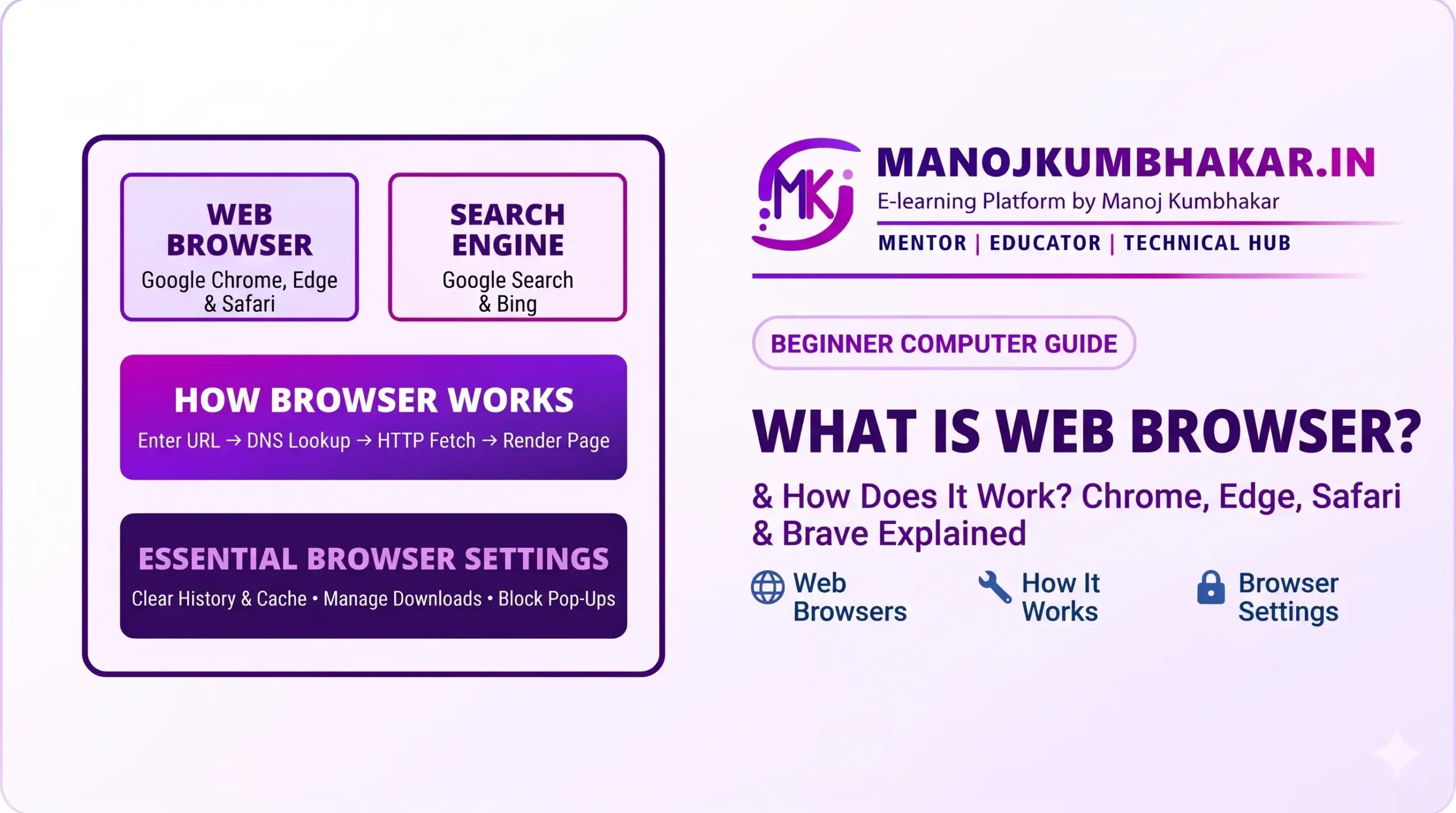
Think about the very first icon you click whenever you turn on your computer or pick up your smartphone—whether you are checking exam results, watching a YouTube tutorial, or searching on Google. Without that single piece of software, the entire World Wide Web would remain invisible to you, even with the fastest fiber internet connection on Earth.
Yet most beginners confuse a web browser with a search engine like Google—and leave default browser settings untouched, slowing down their PC and exposing their privacy. If you have ever wondered what is web browser and how does it work behind every click, this beginner-friendly guide explains everything in plain English: popular browsers and their makers, how web pages load in milliseconds, key differences between top browsers, and must-know basic settings.
Table of Contents
- 1. What is a Web Browser? (Simple Definition)
- 2. Web Browser vs. Search Engine: Know the Difference
- 3. How Does a Web Browser Work? (Visual Flow & Steps)
- 4. Popular Web Browsers and Their Manufacturers
- 5. How Different Web Browsers Compare
- 6. 6 Essential Browser Basic Settings Every User Should Know
- 7. Frequently Asked Questions (FAQs)
1. What is a Web Browser? (Simple Definition)
To understand what is web browser and how does it work in simple words: a web browser (often just called a browser) is an application software installed on your computer, laptop, tablet, or smartphone that lets you access, view, and interact with websites on the World Wide Web.
Think of the Internet as a massive global library filled with billions of digital books (websites), and your web browser as your personal reading window. Whenever you type a website address (URL- Uniform Resource Locator) or click a link, the browser fetches the website’s hidden code—written in HTML, CSS, and JavaScript—and translates it into the colorful text, buttons, photos, and videos you see on your screen.
2. Web Browser vs. Search Engine: Know the Difference
A common mistake among students and new computer users is calling Google a web browser. Here is the clear difference:
- Web Browser (The Vehicle): Software installed on your device—such as Google Chrome, Microsoft Edge, Mozilla Firefox, or Apple Safari—used to open web pages.
- Search Engine (The Directory Website): A website you open inside a browser—such as Google Search (google.com), Microsoft Bing, or DuckDuckGo—that helps you find other websites when you do not know their exact address.
3. How Does a Web Browser Work? (4 Simple Steps)
Every time you type https://www.manojkumbhakar.in into the address bar and press Enter, your browser completes four behind-the-scenes tasks in less than a second:
How a Web Browser Loads Any Webpage in 4 Steps
Enter URL
You type a website address (URL) into the browser’s address bar.
DNS Lookup
The browser asks a DNS server for the website’s numerical IP address.
HTTP/HTTPS Fetch
It connects to the web server and downloads HTML, CSS, and image files.
Render Page
The browser’s rendering engine paints the visual webpage on your screen.
- Step 1 — Reading the Web Address (URL): You enter a web address like
https://manojkumbhakar.ininto the top address bar. - Step 2 — Finding the Server via DNS: The browser contacts a Domain Name System (DNS) server to convert the website name into the server’s numerical IP address. (Read our full breakdown of What is Internet and How Does It Work to see how packets travel across cables.)
- Step 3 — Requesting Files via HTTP/HTTPS: Using secure HTTPS rules, your browser sends a request to the website’s hosting server and receives raw code files (HTML for structure, CSS for colors/layout, and JavaScript for interactive features).
- Step 4 — Rendering the Visual Webpage: Inside every browser sits a built-in translator called a Rendering Engine (such as Blink in Chrome/Edge or Gecko in Firefox). It reads the code and draws the finished webpage onto your monitor.
4. Popular Web Browsers and Their Manufacturers
Different technology companies develop their own web browsers for Windows, macOS, Linux, Android, and iOS. Here are the 6 most widely used web browsers and their manufacturers:
| Web Browser Name | Manufacturer / Developer | Supported Operating Systems | Core Engine |
|---|---|---|---|
| Google Chrome | Google LLC | Windows, macOS, Linux, Android, iOS | Blink (Chromium) |
| Microsoft Edge | Microsoft Corporation | Windows, macOS, Linux, Android, iOS | Blink (Chromium) |
| Apple Safari | Apple Inc. | macOS, iOS, iPadOS | WebKit |
| Mozilla Firefox | Mozilla Corporation | Windows, macOS, Linux, Android, iOS | Gecko |
| Opera | Opera Norway AS | Windows, macOS, Linux, Android, iOS | Blink (Chromium) |
| Brave Browser | Brave Software, Inc. | Windows, macOS, Linux, Android, iOS | Blink (Chromium) |
5. How Different Web Browsers Compare
While every browser opens websites, each one is built with different strengths depending on your device, privacy needs, and speed priorities:
- Google Chrome — Best for Ecosystem & Extensions: The world’s most popular browser. It syncs bookmarks, passwords, and history seamlessly across your Google account and offers the largest library of Chrome Web Store extensions, though it can use higher RAM when dozens of tabs are open.
- Microsoft Edge — Best for Windows Speed & Battery Life: Built directly into Windows 10 and Windows 11. Because Edge shares the same Chromium core as Chrome, it runs all Chrome extensions while offering Sleeping Tabs (which save RAM) and built-in PDF tools.
- Apple Safari — Best for Mac & iPhone Efficiency: Pre-installed on every Mac, iPhone, and iPad. Safari is tightly optimized for Apple hardware, giving MacBook and iPhone users noticeably longer battery life and fast page loading.
- Mozilla Firefox — Best for Open-Source Privacy: Unlike Chrome, Edge, Opera, and Brave—which all rely on Google’s Chromium engine—Firefox uses its own independent Gecko engine and includes strong Enhanced Tracking Protection out of the box.
- Brave — Best for Built-In Ad & Tracker Blocking: Automatically blocks third-party ads and website trackers by default, making pages load faster while using less mobile data.
- Opera — Best for Built-In Sidebar Tools: Includes a free built-in browser VPN, integrated WhatsApp/Telegram sidebar messengers, and a battery-saver mode for laptops.
6. 6 Essential Browser Basic Settings Every User Should Know
Learning how to adjust basic settings makes your daily browsing faster, safer, and cleaner. In almost any browser (Chrome, Edge, or Firefox), click the three dots (⋮) or three lines (≡) in the top-right corner and select Settings to configure these six options:
- Clear Browsing Data (History, Cache & Cookies): Press
Ctrl + Shift + Deleteon Windows (orCmd + Shift + Deleteon Mac) to clear old cached files when a website looks broken or when using a shared school/office computer. - Set Default Search Engine: Open Settings → Search engine to choose whether your address bar searches using Google, Bing, or DuckDuckGo.
- Manage Downloads Folder & Ask Where to Save: Go to Settings → Downloads to change where downloaded PDFs and images are saved, or turn on “Ask where to save each file before downloading” so your Downloads folder stays organized.
- Customize Startup Page & Home Button: Under Settings → On startup, choose whether your browser opens a clean New Tab page, continues where you left off, or opens your favorite study site like
https://manojkumbhakar.inautomatically. - Privacy, Pop-Ups & Site Permissions: Open Settings → Privacy and security → Site settings to block annoying pop-up ads and control which websites can access your camera, microphone, or location.
- Password Manager & Autofill Safety: Enable saved passwords only on your personal laptop or phone—and always turn off password saving when signing in on a public or lab computer.
For official step-by-step instructions on managing privacy and site permissions, refer to the Google Chrome Help Center on Site Permissions.
7. Frequently Asked Questions (FAQs)
What is the difference between a web browser and a search engine?
A web browser (like Google Chrome, Microsoft Edge, or Safari) is a software program installed on your device to open websites. A search engine (like Google Search or Bing) is a website inside your browser that helps you search for information across the internet.
Which web browser is best for Windows 10 and Windows 11?
Google Chrome and Microsoft Edge are the two best choices for Windows. Edge comes pre-installed and uses less RAM and battery, while Chrome offers seamless syncing across Android phones and Google services.
What is Incognito or Private Browsing mode?
Incognito mode (Ctrl + Shift + N in Chrome/Edge or Ctrl + Shift + P in Firefox) opens a temporary window that does not save your browsing history, cookies, or form entries on your computer once you close the window.
Can I install more than one web browser on the same computer?
Yes! You can install Chrome, Edge, Firefox, and Brave on the exact same PC or smartphone and switch between them anytime—or set your favorite one as your Default Browser in Settings.